WorkBuddy connects to OctaRouter over the OpenAI-compatible protocol. After one setup, the same API key can call any model on the Models page that supports OpenAI.
Before you start
- Sign up at OctaRouter and verify your email.
- Open Dashboard → API keys and create a key. You can view and copy the full secret again anytime on that page.
- Open the Models page, filter by the OpenAI protocol, and copy the model ID you want. If unsure, pick OpenAI-compatible — it works for almost every model.
The OpenAI-compatible endpoint is https://api.octarouter.com/v1.
Add a model in WorkBuddy
- Open the menu in the lower-left corner and go to Settings (设置).
- In the left sidebar, click Model (模型) to open custom model configuration:
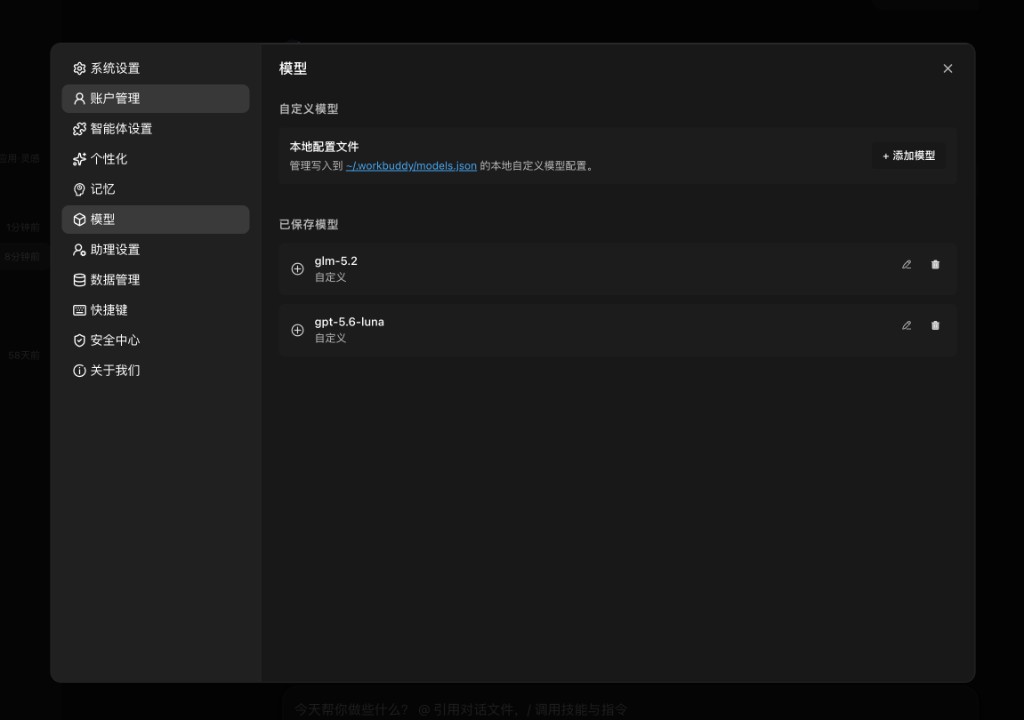
- Click + Add model (+ 添加模型) and fill in OctaRouter’s OpenAI endpoint, the API key from your dashboard, and the model ID (the add and edit dialogs share this form):
| Field | Value |
|---|---|
| Provider (提供商) | Custom (自定义) |
| API endpoint (接口地址) | https://api.octarouter.com/v1 |
| API Key | The key you created in the dashboard |
| Model name (模型名称) | The model ID from the Models page, e.g. glm-5.2 |
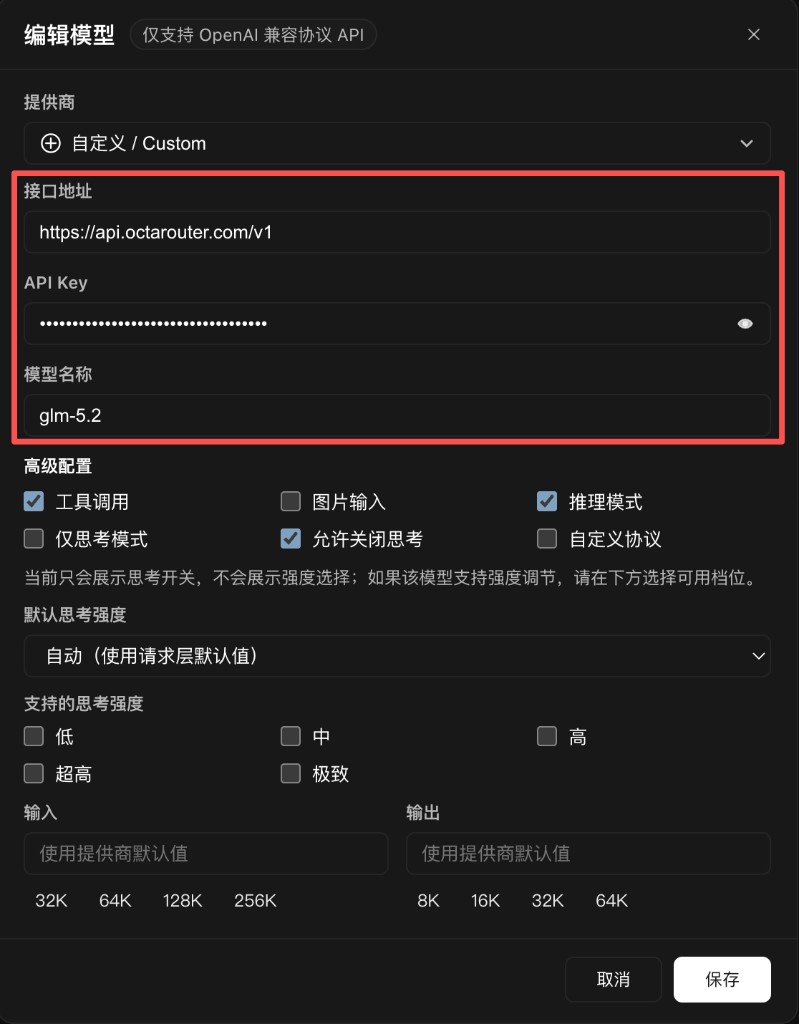
Click Save (保存) when you are done.
Use it in chat
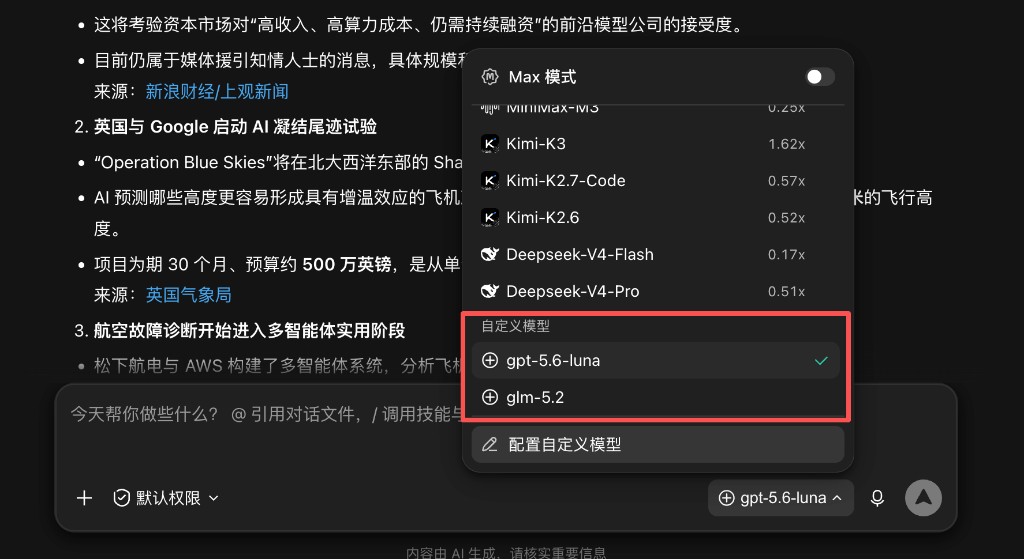
After the custom model is saved, return to the chat input. Open the model picker at the bottom of the composer. Under Custom models (自定义模型), you will see the model you just added — select it to start chatting:
Advanced settings
If the model supports reasoning mode (推理模式), turn it on — most current models do. For default reasoning intensity (默认思考强度), keep Automatic (use request-layer default) (自动).
Remote models do not all accept the same extra parameters. Client apps rarely map those options uniformly for third-party endpoints, so pinning Low / Medium / High can send values the upstream rejects and the call fails. Automatic is usually the safest choice.
Leave the other toggles (image input, reasoning-only, custom protocol, token limits) at their defaults until chat works, then adjust only if the model actually supports them.